Category: SharePoint

Building a no code solution for Class Registration – Part 3

Continuing on from the creation of our initial class form now we will cover the creation of a few basic fields and calculated fields that will support our no code solution.  This time we will edit our list directly in Internet Explorer.

Part 2 of This Series

From the Beginning

  1. Begin by launching Internet Explorer and navigating to your class list.
    1. In my case my address will be: http://localhost/sites/aaronfrench/Lists/Classes/AllItems.aspx
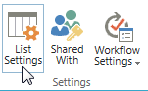
  2. Click on the List tab in the upper left hand of your screen and then click List Settings in the ribbon No Code 3-2
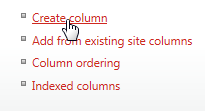
  3. Here we can see all of our setting and fields for our Class list.  Scroll down and click Create Column
    No Code 3-3
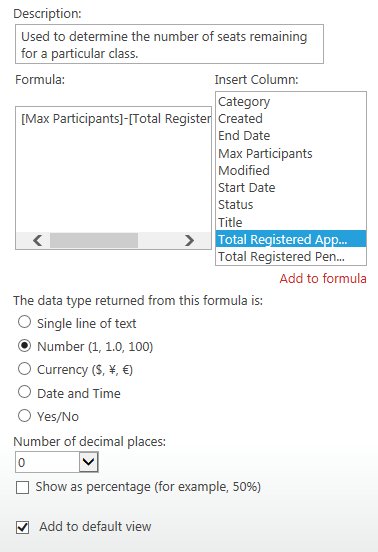
  4. In the column name field enter Seats Remaining and choose Calculated for the field type
  5. Now enter the Formula text box and enter the following formula determined earlier
    1. [Max Participants]-[Total Registered Approved]
  6. Change the data type returned to Number
  7. Change the number of decimal places to 0
    No Code 3-4
  8. Now click OK
  9. Create another field by clicking on the Create Column link again
  10. Set up the following settings:
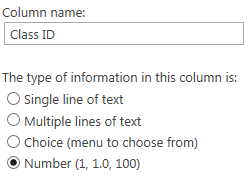
    1. Column Name: Class ID
      1. We will use this column to deal with a limit of SharePoint where we cannot use the ID field in a calculated column
        1. Later we will setup a workflow to assign the list item’s ID to Class ID
    2. Data Type: Number
      No Code 3-5
  11. Click OK
  12. Let’s create another calculated column by clicking Create Column again
  13. Set up the following settings:
    1. Column Name: Registration Link
    2. Data Type: Calculated
    3. Formula:
      1. =IF(Status=”Open”,”<a href=”&”http://
        localhost/sites/aaronfrench/Lists/
        Registration/Item/newifs.aspx?Source=http://localhost/sites/aaronfrench/
        SitePages/Home.aspx&ClassID=”&[Class ID]&”>Register</a>”,””))

        1. Note: You will need to replace localhost/sites/aaronfrench/ with the name of your local SharePoint 2013 site.
    4. Return Date Type: Number
      1. Note: Due to a limitation of SharePoint, you will need to select Number as the return data type to be able to create a viable link.
  14. Click OK
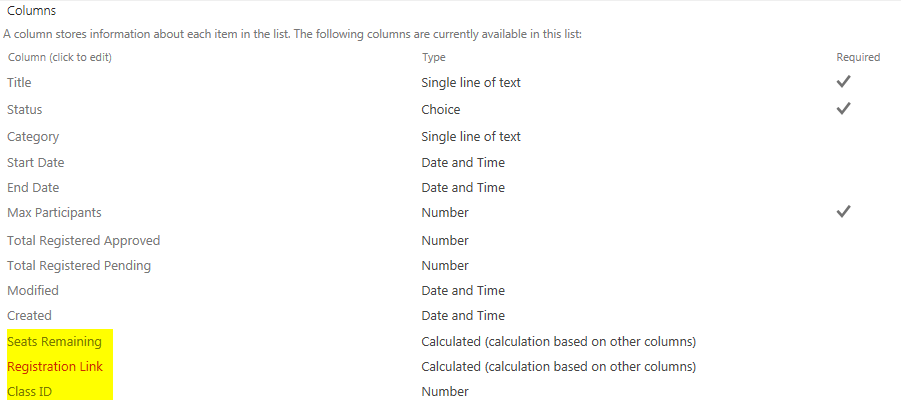
  15. Now we should have three new fields that will support our final solution:
    1. Class ID
    2. Seats Remaining
    3. Registration LinkNo Code 3-6
  16.  To see our handy work let’s view our class list and change our class Status to Open.
    1. Note how the Seats Remaining should equal our Max Participants since we have not yet approved any registrations.   We should see our Registration link, but it should not work quite yet.  If you change the class status to anything other than Open the link will disappear.  That is one handy no code solution tip.  Registration users will not be able to register for a class that is not open for registration…Very Nice!  Finally we will not have anything in our Class ID yet since we need to create a SharePoint workflow in SharePoint Designer 2013

      No Code 3-7
This completes part 3 of our no code solution using SharePoint

Next time, we will setup a SharePoint 2013 workflow to create the Class ID without using any code.  Then create our Registration form.

Part 4 of the Series
Building a no code solution for Class Registration – Part 2

Now it is time to actually get started. Today we will cover the creation of a basic class form using a no code solution tool called InfoPath 2013. Our tool will be hosted on our SharePoint 2013 collaboration site.

Part 1 of This Series


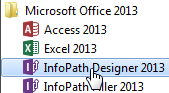
  1. Launch InfoPath Designer 2013No Code 2-1
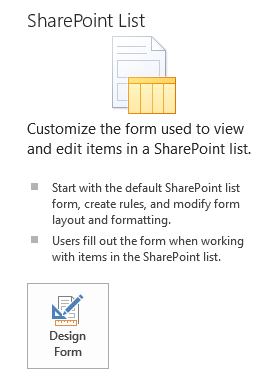
  2. Select SharePoint List from the New menu
  3. Click Design FormNo Code 2-2
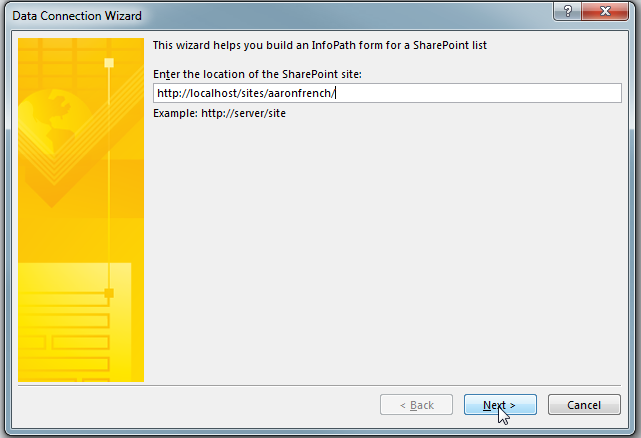
  4. Enter the URL of the SharePoint site you will use to host your siteNo Code 2-3
  5. Click Next
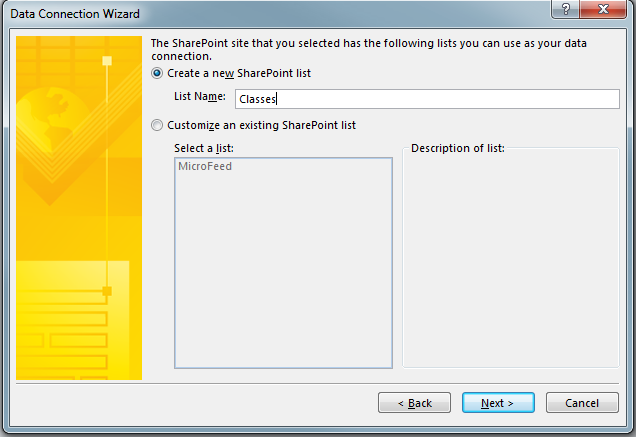
  6. Select Create a new SharePoint list called ClassesNo Code 2-4
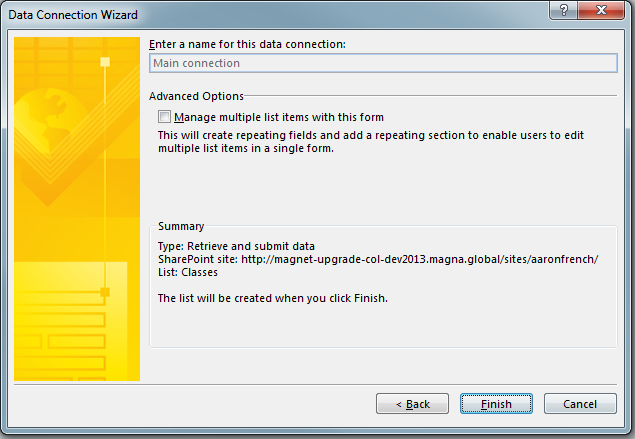
  7. Click Next then FinishNo Code 2-5
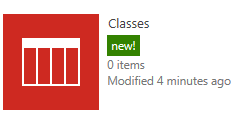
  8. The list will now be created on your SharePoint siteNo Code 2-6
    1. The Default form will show only the Title and AttachmentsNo Code 2-7
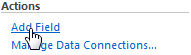
  9. Now we need to create the following fields with the following data types by clicking the Add FieldNo Code 2-8
    1. Status (Choice)
      1. Cancelled
      2. Full
      3. Open
      4. Closed
      5. Completed
      6. Unavailable (Default Choice)
    2. Category (Text)
      1. We will later configure this to pull choices from another SharePoint list
    3. Start Date (Date)
    4. End Date (Date)
    5. Max Participants (Number)
      1. Note: this will be a whole number
    6. Registration Link (Calculated Field/Number)
      1. We will adjust this to allow us to give our users a friend link in the list views
    7. Seats Remaining (Calculated Field/Number)
      1. Used to help the workflows determine if a class is full.
      2. Calculation: Max Participants – Total Registered Approved
    8. Total Registered Approved (Number)
    9. Total Registered Pending (Number)
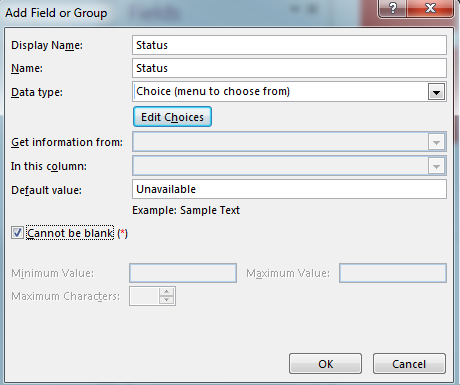
  10. Enter the Display Name Status and select Choice (menu to choose from) for the Data type
  11. Enter a default value of UnavailableNo Code 2-9
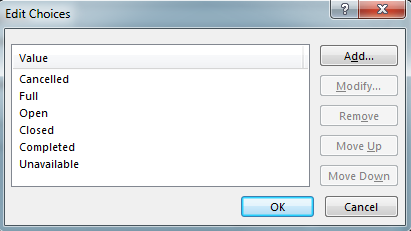
  12. Click the Edit Choices button and click Add/Modify to add the following choices:
    1. Cancelled
    2. Full
    3. Open
    4. Closed
    5. Completed
    6. UnavailableNo Code 2-10
  13. Click OK and OK again to add the Status field
  14. Now repeat adding the following new fields:
    1. Category
      1. Display Name: Category
      2. Data Type: Single line of text
    2. Start Date
      1. Display Name: Start Date
      2. Data Type: Date
    3. End Date
      1. Display Name: End Date
      2. Data Type: Date
    4. Max Participants
      1. Display Name: Max Participants
      2. Data Type: Number
      3. Default Value: 0
      4. Can not be blank checked
      5. Minimum Value: 0
    5. Total Registered Approved
      1. Display Name: Total Registered Approved
      2. Data Type: Number
      3. Total Registered Pending
      4. Display Name: Total Registered Pending
      5. Data Type: Number
  15. Registration Link and Seats Remaining will be added directly to the list later
  16. Once you have all of these fields added we can start laying out the formNo Code 2-11
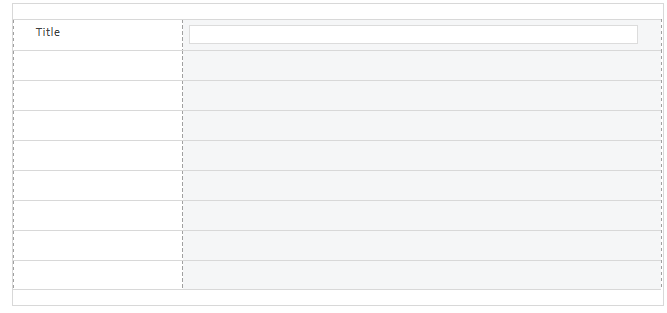
  17. Go ahead and delete the Attachments from the form
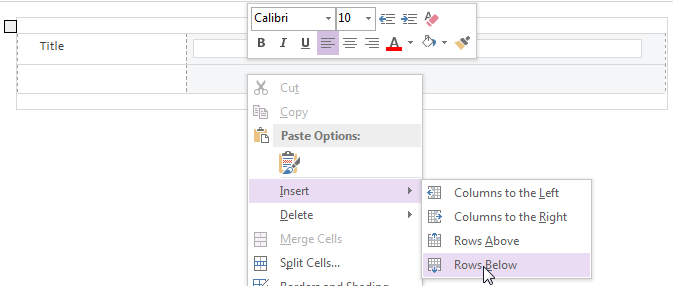
  18. Add a row to the existing table by right-clicking on the blank row that originally had the attachments and clicking on Insert then Rows BelowNo Code 2-12
  19. Continue this process until you have 8 new rows
    1. Tip: You can save time adding rows by selecting multiple rows and then clicking Insert Rows Below. This will add a number of rows relative to the number you have selected already.No Code 2-13
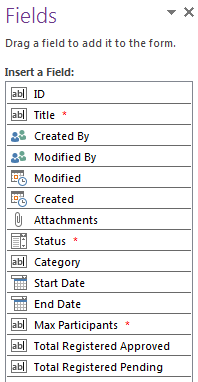
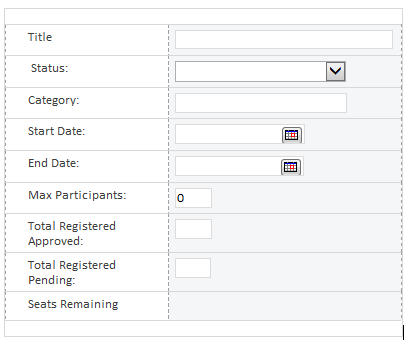
  20. Now click on the fields and drag them to the form. When complete your form should look like this:No Code 2-14
    1. I went ahead and adjusted the field, row and form width till I found a look I liked
    2. Note: I went ahead and typed in Seats Remaining as a placeholder for our future field.
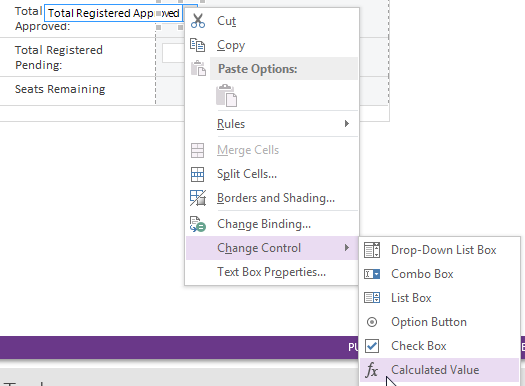
  21. Now right click on the text box for Total Registered Approved and select Change Control and then Calculated ValueNo Code 2-15
    1. This will make the field read-only
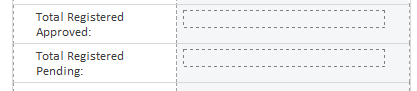
  22. Repeat step 21 for Total Registered PendingNo Code 2-16
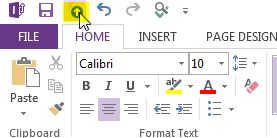
  23. Now let’s publish our form by clicking the Quick Publish link at the top of the InfoPath Designer.No Code 2-17
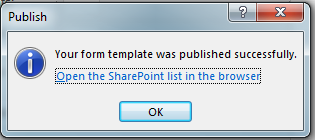
  24. If all goes well you should get this message:No Code 2-18
  25. Click on the “Open the SharePoint list in the browser” to launch our new form.
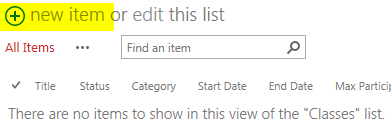
  26. Click New Item to see our form.No Code 2-19
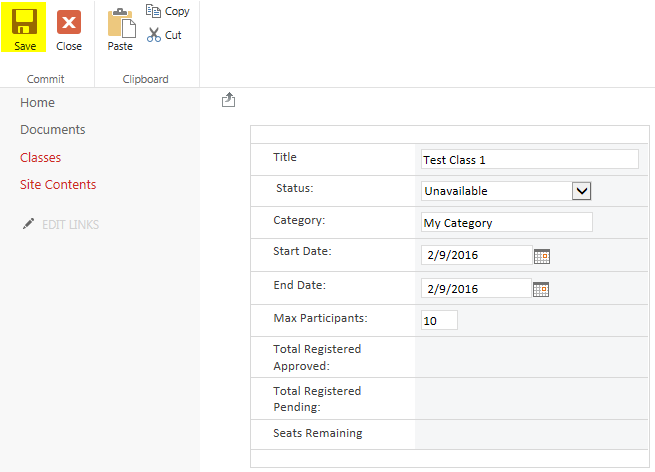
  27. Fill in the form with some test data and click Save.No Code 2-20
  28. Now we have our first class added to the listNo Code 2-21
Congrats Your First InfoPath 2013 no code form is complete

This completes our first walk through on building our basic class registration form in InfoPath using the no code methodology. We have a lot to cover and I don’t want each topic to get too winded. Next time we will add our registration link and set up our calculated fields.

Part 3 of the series

Building a no code solution for Class Registration – Part 1

Getting Started with a No Code Solution

In this multi-part series we will build a no code solution using SharePoint to allow users to create and register for classes.   We will be using SharePoint and InfoPath 2103 to create an out of the box solution.

Each part will aim to focus on adding a single functionality to the final solution.  Some of the main features of this tool will be:

  • Ability to Register for a class
  • Ability to get supervisor approval
  • Support for Multiple Language
  • Ability to close class automatically when full
  • Allow participants to be put into a queue should the class be full before approval
  • Ability for participants to be added on behalf of a requestor
  • Allow classes to have varying class terms and conditions
  • System to automatically display a registration link when a class is available for registration
  • Ability to disable registration when class has reached a registration deadline
  • Allow specific classes to bypass approvals
  • Allow participants the ability to select a specific department/division
  • Allow users to select a supervisor for approval
  • Security to eliminate users for approving themselves
  • Ability to save a registration request without sending out for approval
  • A Registration approval system
  • A cancellation workflow
  • Custom SharePoint user security
  • Configurable and removable sections

First we will begin by drafting up the main class form. Then the individual registration form.  We will then connect the two forms via workflows and then focus on adding some detailed functionality.   Finally we may add some new enhancements; such as reporting, KPIs, web parts to round out the project.

Sit back and enjoy!

Part 2 of the Series

Introductions

Sail CruisersHi, I am Aaron.

I live in Michigan, USA and work as a Business Analyst.  For the longest time I have always want to start my own personal blog to challenge myself to become a better writer.  Math and science were always my forte, but writing was another story.  So in an effort to work on my weaknesses and overcome new obstacles I have started my personal blog.

The focus of my blog will be to highlight my past, present and hopefully bright future.  I want to talk about my hobbies, skills, and goals.  I do not want to bore my reader with the same old thing.  So I will focus on unique aspects of my life.